Row scoping in Rig: every rep sees their own numbers
Build one commission app for the whole sales team. Each rep opens it and sees only their own line, each manager sees their team, and owners see everyone. Rig works out who is looking from your people directory and adds that filter to every query that reads the table.
How it works
Row scoping has two parts. A people directory records who works at your company, who manages whom, and which teams they sit in. A user-scoped table tells Rig which column in a table names the person a row belongs to, such as the deal owner on a deals table.
When someone reads that table, whether in a data app, in chat, or from Claude or Cursor over MCP, Rig adds a filter for the rows that viewer is allowed to see. Nobody has to write that filter into the app, and it can't be removed from inside the app either.
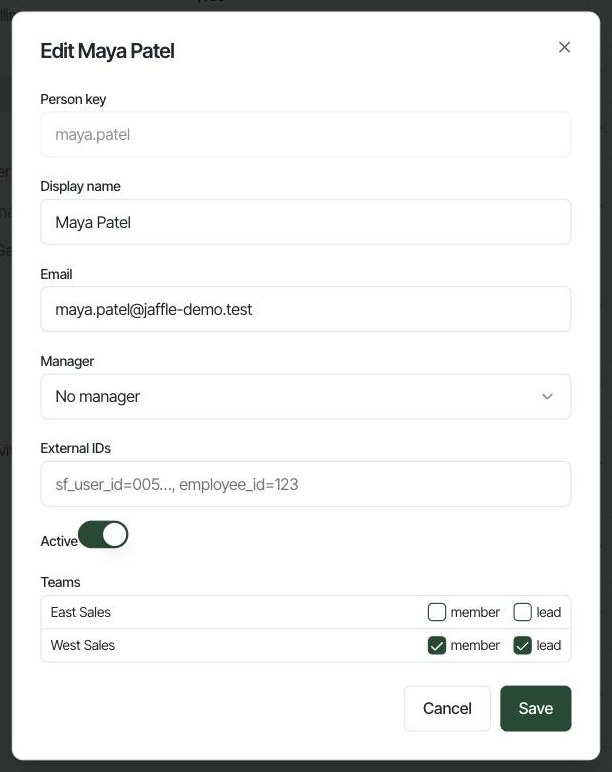
This guide builds a rep commission app on a demo deals table. Two West Sales reps, Jia and Devon, report to Maya, who leads the team. Rico is on East Sales and reports to Sara.
Before you start
You need the Owner or Admin role in Rig. The table you scope needs a column that identifies the person each row belongs to: an email, a name, an employee id or a team. If the numbers you want to show are tagged as financial, check in role-based access control that your reps' role is allowed to see financial columns. Otherwise they will see their row with the amounts masked.
Add your people and managers
- Open
Settings, then People. Everyone who already has a Rig account is listed. - Click Add person for anyone who should be scoped. Give them a person key (a stable id that never changes, such as
jia.tan), the display name used in your data, and their work email. - Pick their Manager. This is what lets Maya see Jia's and Devon's rows.
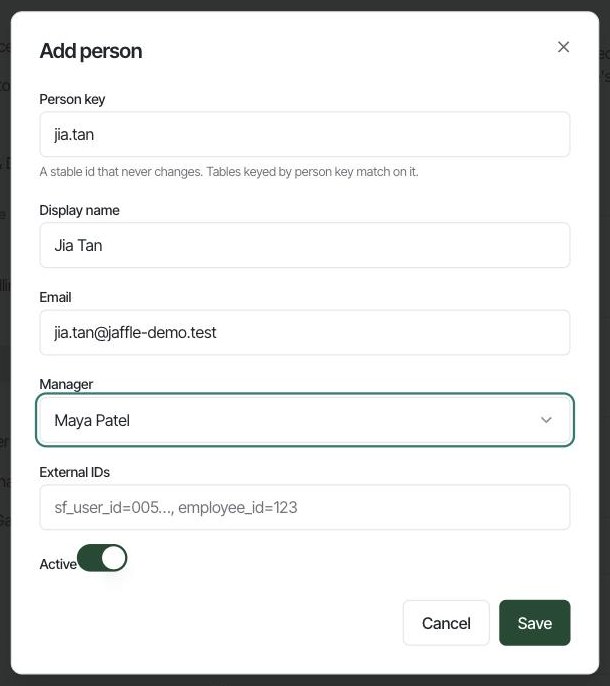
Rig matches a signed-in user to their person by their Rig account, or by email the first time they sign in. A person with no Rig account can still own rows: their manager sees those rows even though the person never logs in.
If your HR system or CRM already holds this, point the Warehouse source section further down the page at a table with one row per person, and Rig keeps the directory in sync. Fields it maps become read-only in the UI.
Group people into teams
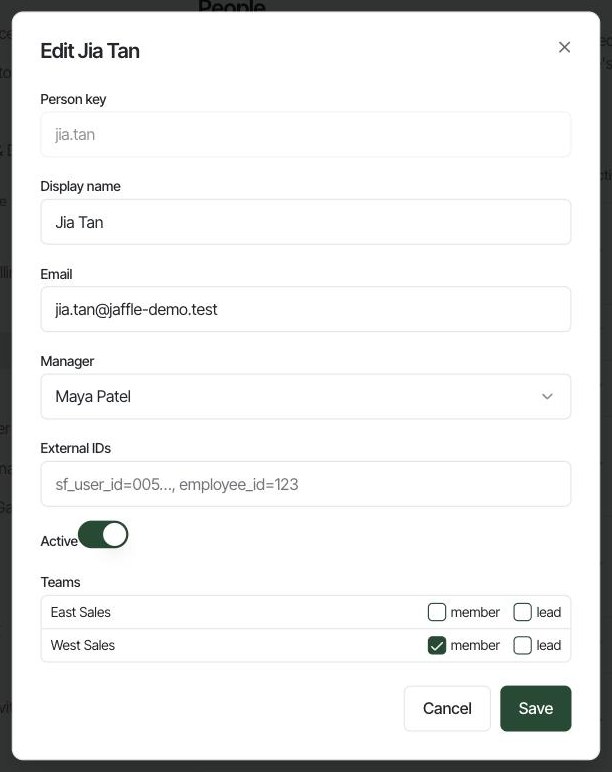
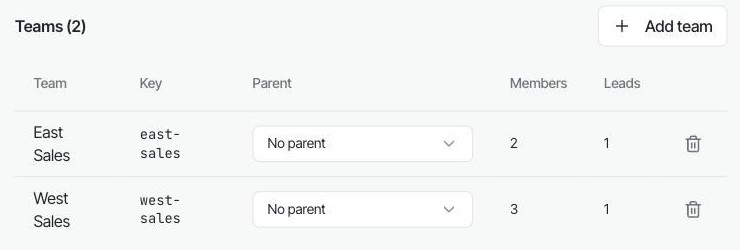
Teams cover the cases a reporting line doesn't, such as a pod that shares a pipeline. In the Teams section, click Add team, give it a name and a key, and optionally a parent team. Then open each person and tick the teams they belong to. Tick lead for whoever runs the team.
Mark a table as user-scoped
- Open
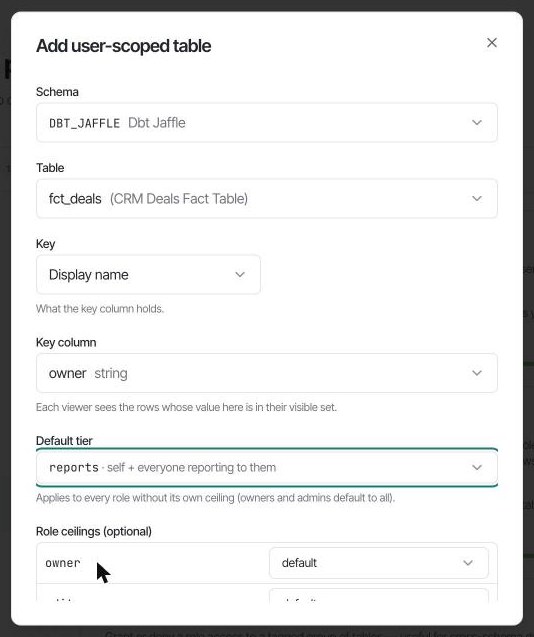
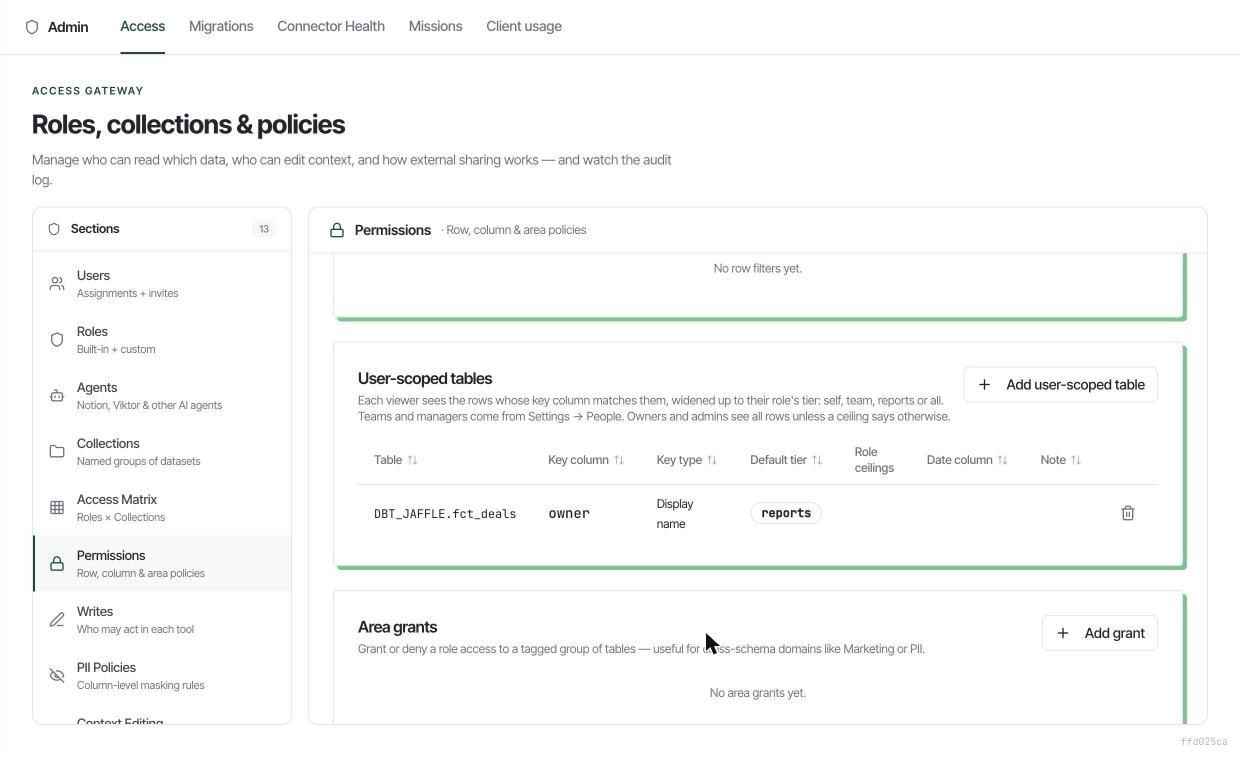
Admin, thenAccess, then Permissions. Under User-scoped tables, click Add user-scoped table. - Pick the schema and the table: here, the deals fact table.
- Set Key to the kind of value in the column. The deals table stores the owner's name, so this is Display name. The other options are Email, Person key, External ID, Team key and Team name.
- Set Key column to the column itself:
owner. - Choose the Default tier, which decides how much of the reporting tree below them a viewer can see.
| Tier | The viewer sees |
|---|---|
self | Only rows whose key matches the viewer. |
team | Rows for everyone in the viewer's teams, including sub-teams. |
reports | The viewer's own rows plus everyone who reports to them, directly or further down. |
all | Every row. |
Role ceilings let a role go further than the default. For example, give your finance role all on the deals table while every rep stays on reports. Owners and admins see every row unless a ceiling says otherwise.
Build the comp app once
Build the app the way you would for a single viewer, with no rep filter and no per-person copies. Ask Rig in chat for a commission app, or write the query yourself:
SELECT owner,
       COUNT(*)                                        AS deals,
       SUM(CASE WHEN is_won THEN 1 ELSE 0 END)         AS won,
       SUM(CASE WHEN is_won THEN amount_usd END)       AS closed_won,
       0.10 * SUM(CASE WHEN is_won THEN amount_usd END) AS commission
FROM   dbt_jaffle.fct_deals
GROUP  BY owner
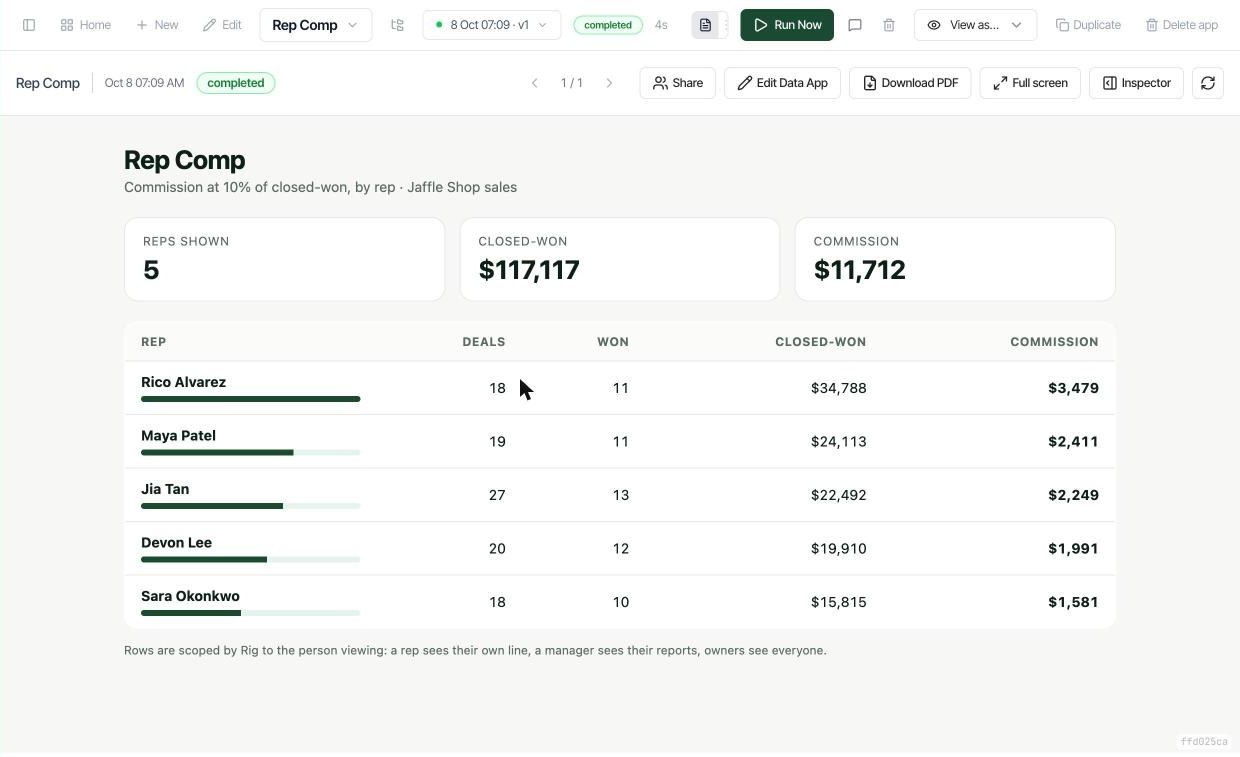
As an owner, you see every rep:
Check it as a rep and a manager
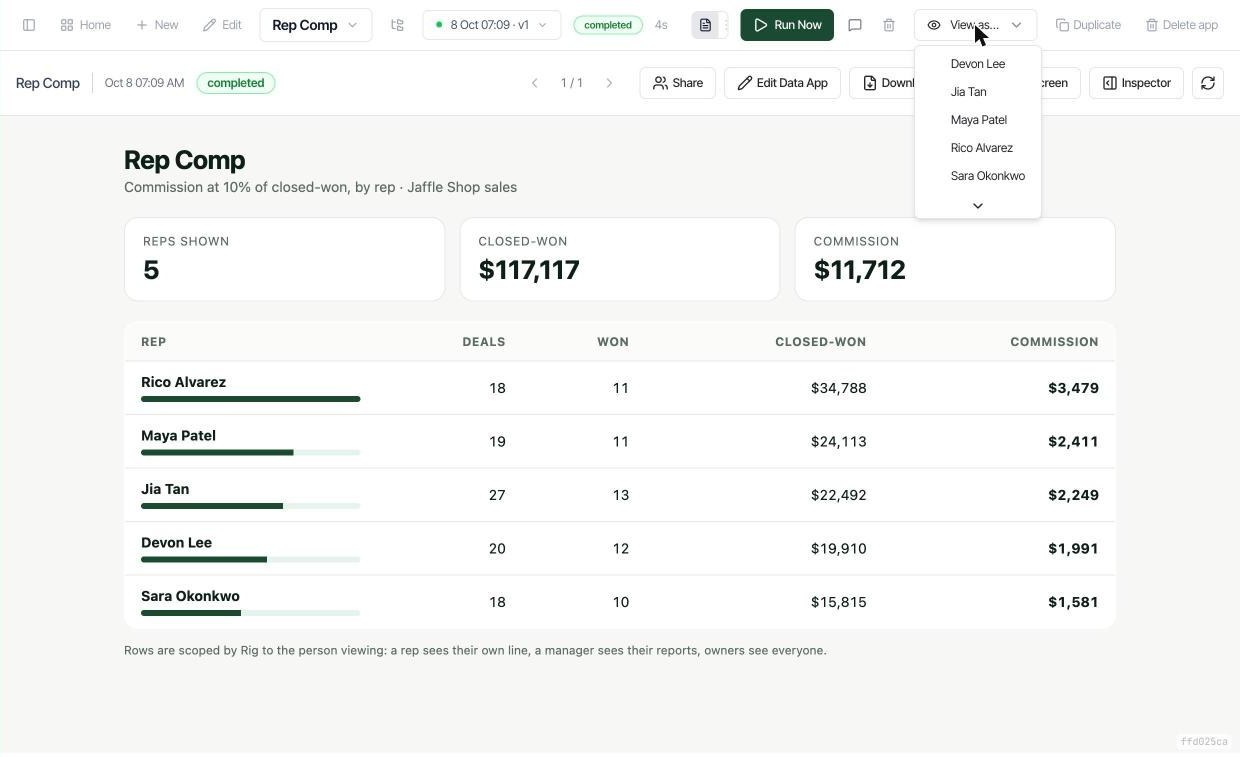
Before you share the app, open View as… in the app toolbar and pick a person. Rig renders the app with that person's role and rows. Nothing is saved, and every preview is written to the audit log.
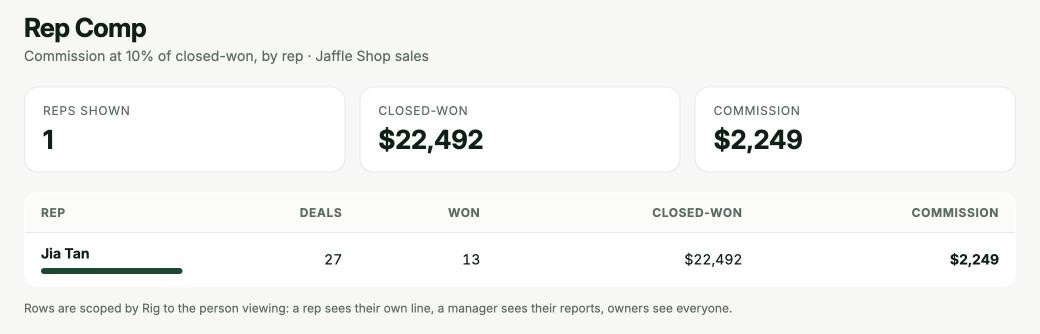
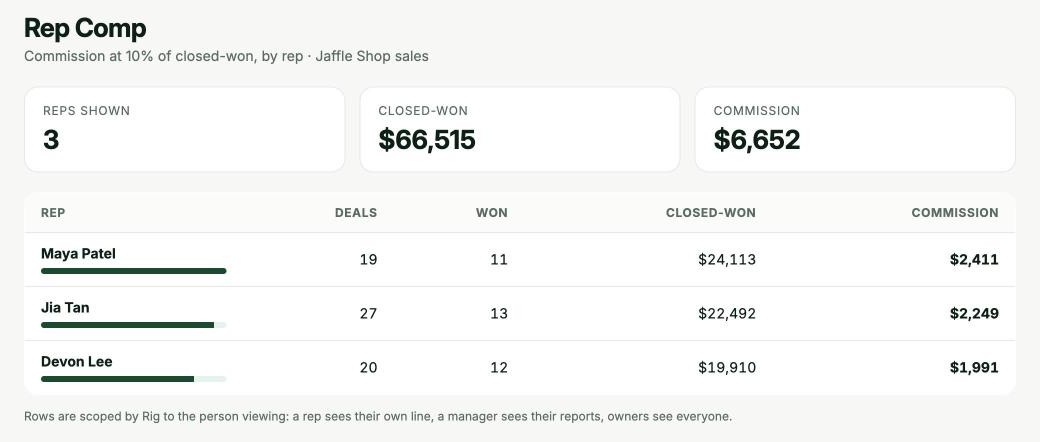
Then share the app with the sales team as normal. When a rep opens it, the app runs as them and shows the view you just previewed. Runs made by other people, including yours as the owner, stay hidden from them. Because each run is personal, an app that reads a user-scoped table can't be shared through a public link.
Good to know
- The filter applies wherever someone reads the table through Rig: data apps, chat, and Claude, Cursor or any other tool connected to Rig over MCP.
- Rows whose key matches nobody in the directory are visible only to roles that see
all. A typo in an owner name hides that row from its rep rather than showing it to everyone. - Directory changes apply to the next query. When someone moves team or manager, their old manager loses their rows without any app being rebuilt or re-run.
- Row scoping narrows rows. To hide columns, use the column masks in role-based access control. The two combine.